How to Sign In to YouTube on Smart TV
Signing in to YouTube on your Smart TV lets you access your subscriptions, playlists, watch history, and personalized recommendations. Without signing in, you’re only browsing as a guest.Most users don’t struggle with opening the YouTube app — they get confused during the sign-in process. Whether you’re using a Samsung TV, LG TV, Roku, Fire Stick, or Android TV, the sign-in method is almost the same.Below is the simplest way to sign in properly without errors.
Quick Summary
To sign in to YouTube on your Smart TV, open the YouTube app and select Sign In. Choose the option to sign in with a web browser, and a code will appear on your TV screen. On your phone or computer, visit youtube.com/activate, log in to your Google account, enter the code shown on your TV, and confirm. Your TV will refresh automatically and complete the sign-in process within seconds.
How to Sign In to YouTube on Smart TV (Step-by-Step)
There are two ways to sign in:
- Using the activation code (recommended)
- Signing in automatically with your phone
The activation code method is more reliable, so we’ll start there.
Method 1: Sign In Using Activation Code
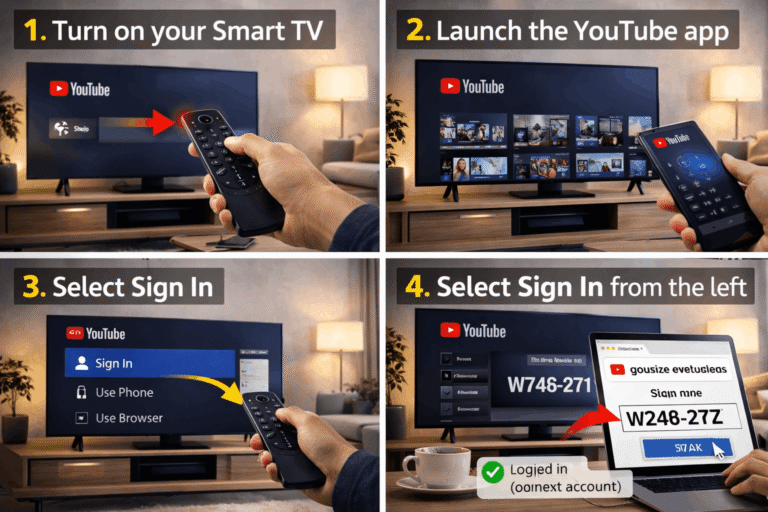
Step 1: Open the YouTube App
• Turn on your Smart TV
• Launch the YouTube app
• Select Sign In from the left menu
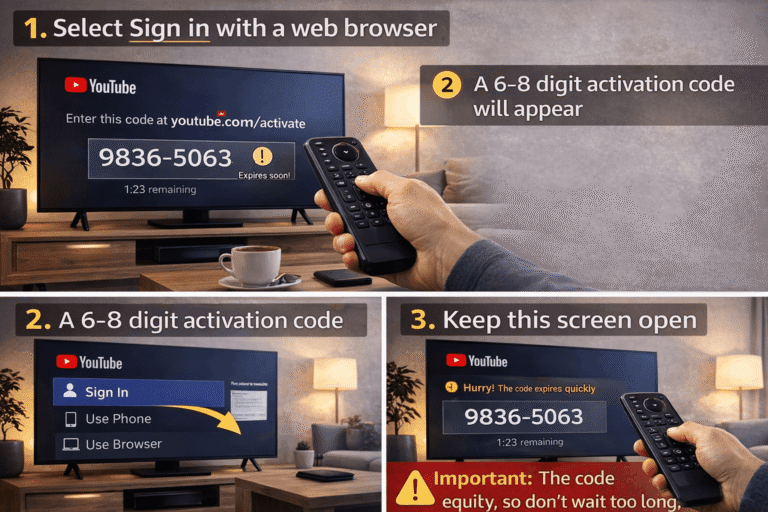
Step 2: Choose “Sign in with a Web Browser”
• Select Sign in with a web browser
• A 6–8 digit activation code will appear on your TV screen
• Keep this screen open
Important: The code expires quickly, so don’t wait too long.
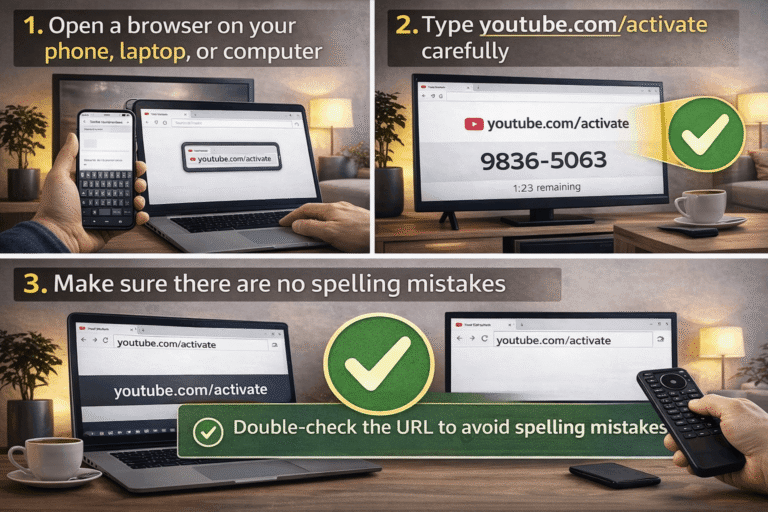
Step 3: Go to youtube.com/activate
• Open a browser on your phone, laptop, or computer
• Type youtube.com/activate carefully
• Make sure there are no spelling mistakes
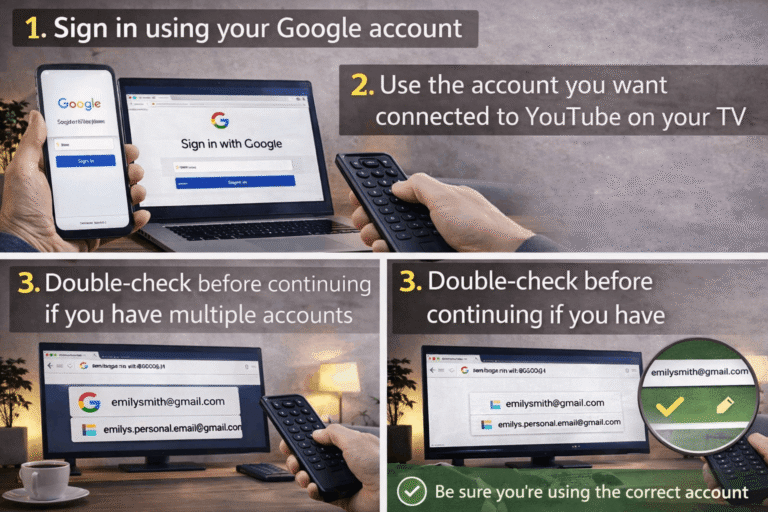
Step 4: Log In to Your Google Account
• Sign in using your Google account
• Use the account you want connected to YouTube on your TV
• Double-check before continuing if you have multiple accounts
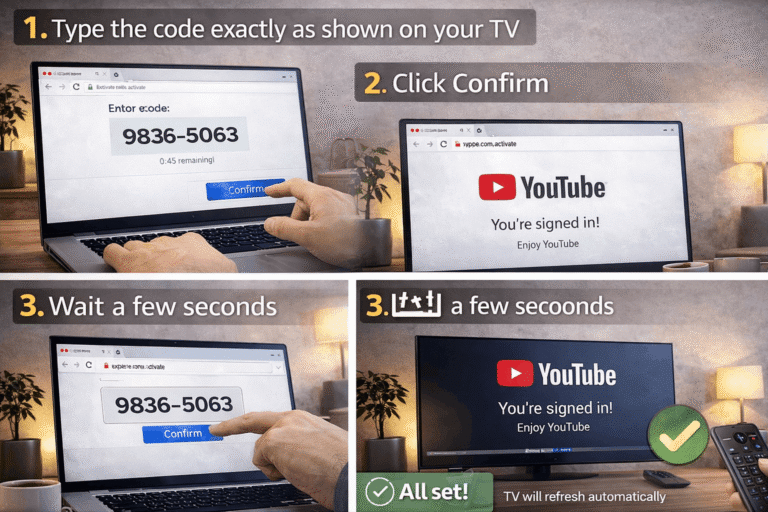
Step 5: Enter the Activation Code
• Type the code exactly as shown on your TV
• Click Confirm
• Wait a few seconds
Your TV will refresh automatically and complete the sign-in process.
You’re done.
Method 2: Sign In Using Your Phone (Automatic Method)
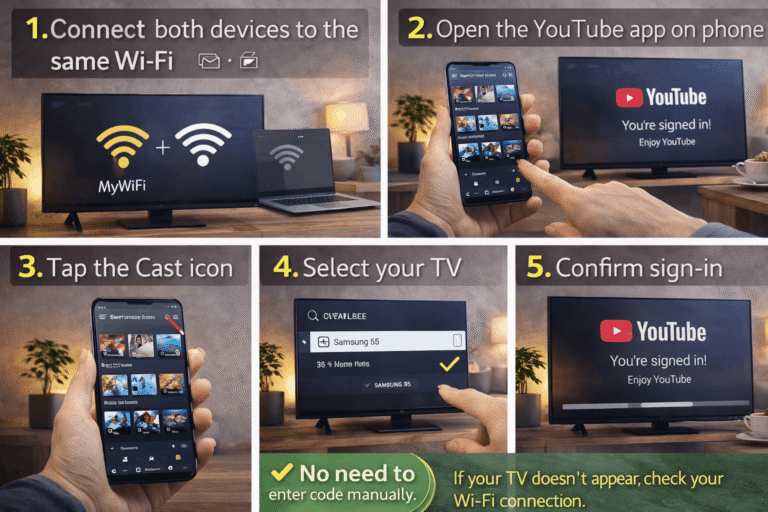
This method works only if your phone and TV are connected to the same Wi-Fi network.
Steps:
- Connect both devices to the same Wi-Fi
- Open the YouTube app on your phone
- Tap the Cast icon
- Select your TV
- Confirm sign-in
This method skips the manual code entry.
If your TV doesn’t appear, check your Wi-Fi connection.
Why YouTube Sign In Sometimes Fails
Even when you follow the steps correctly, small issues can interrupt the process.
Here are the most common reasons:
- The activation code expired
- The wrong Google account was used
- Internet connection is unstable
- VPN is enabled
- Multiple activation pages are open
If sign-in fails, simply restart the YouTube app, generate a new code, and try again immediately.
Common Mistakes to Avoid
Many activation problems are caused by simple mistakes:
- Waiting too long before entering the code
- Typing the wrong activation website
- Switching accounts during activation
- Using public Wi-Fi
- Keeping multiple youtube.com/activate tabs open
Follow the process once carefully, and it usually works the first time.
What to Do If You Still Can’t Sign In
If YouTube still won’t sign in:
- Restart your TV
- Restart your Wi-Fi router
- Clear browser cache
- Generate a fresh activation code
- Enter the code immediately
In most cases, this resolves the issue quickly.
Final Recap
Signing in to YouTube on Smart TV is simple:
Open the app → Select Sign In → Get the activation code → Visit youtube.com/activate → Enter code → Confirm.
When done correctly, the process takes less than a minute.